

How do I install mods on my Minecraft server?
28 August 2026
With Minecraft mods, you can add new features, blocks, creatures, or gameplay mechanics. You can choose to install individual mods or a complete modpack.
Installing mods or a modpack is very easy using the CheeseHosting control panel.
What is a modpack?
A Minecraft modpack is a collection of mods bundled together. A modpack ensures that all mods work well together and can be installed at the same time. This way, you don’t have to figure out which mods are compatible, and you can immediately start a fully customized gameplay experience.
Forge and Fabric
Mods do not work with the standard version of Minecraft. To use mods, both your server and client must run Forge or Fabric. These are modified versions of Minecraft specifically designed to support mods.
Installing a modpack from the CheeseHosting version list
In the CheeseHosting control panel, you will find a large collection of modpacks that you can install with one click. This is the easiest way to install a modpack.
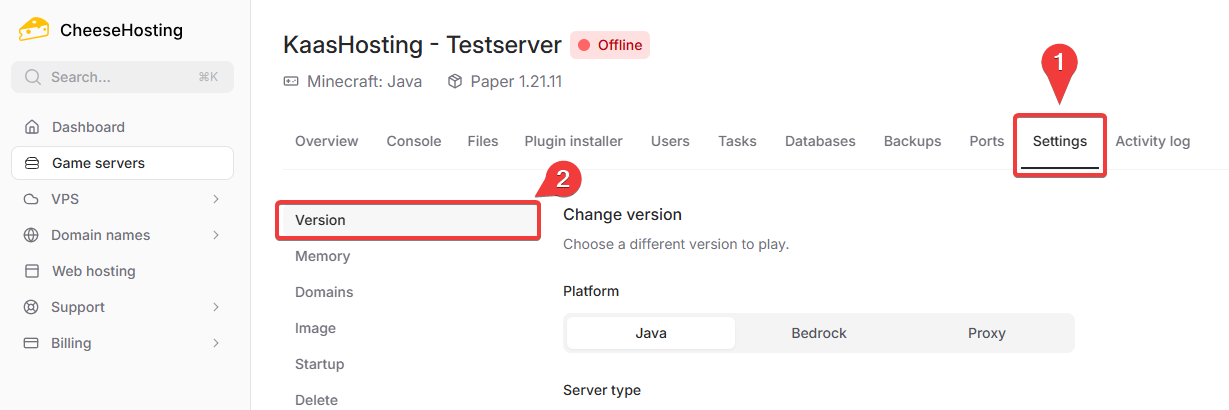
Go to the control panel and click on the server where you want to install a modpack.
Click on Settings and then Version.
Select
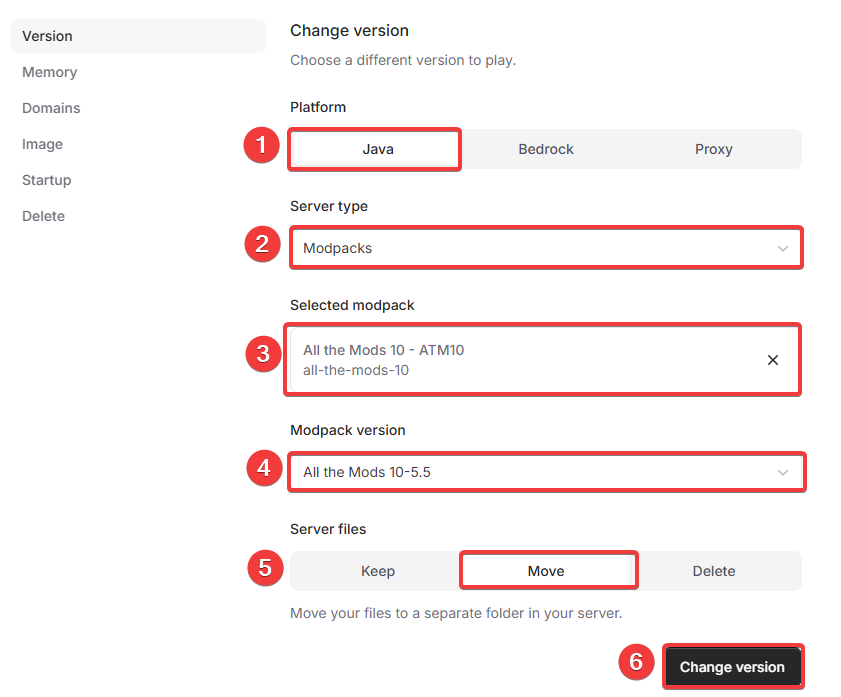
Javaas the Platform.Select
Modpacksas the Server type.Search for the modpack you want at Search modpacks and select the modpack you want.
Select the version of the modpack that you want at Modpack version.
Select Move under Server files to move the existing files on your server to a separate folder.
Start the modpack installation by clicking Change Version.
Wait until the installation is complete. This may take a while. You can follow the progress in the console.
Start your server.
Done! The modpack is now installed on your server and ready to play.
⚠️ Note: To play on the server, you must also install the modpack in your Minecraft client.
Manually installing a modpack
Would you prefer to install a modpack yourself? You can!
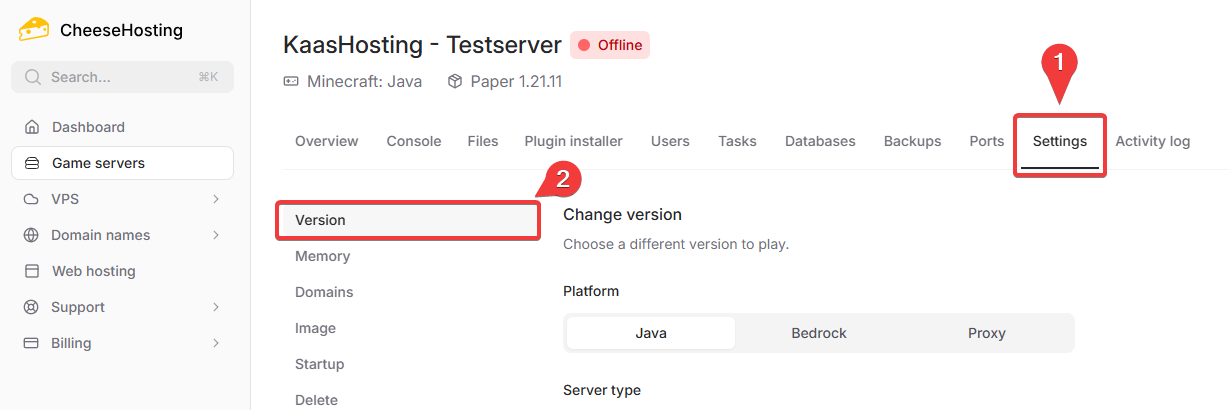
Go to the control panel and click on the server where you want to install a modpack.
Click on Settings and then Version.
Select
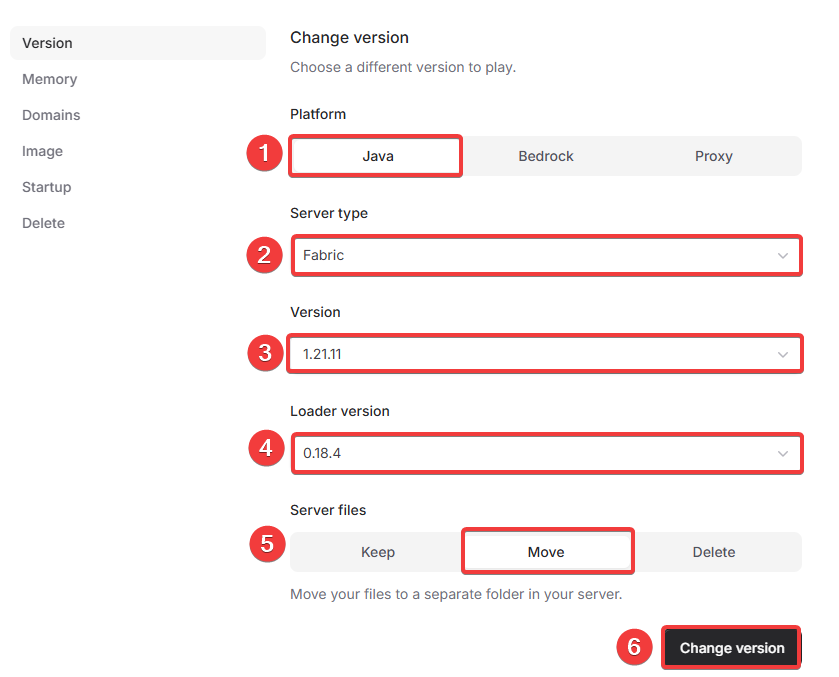
Javaas the Platform.Choose Forge or Fabric under Server type. Which type you need depends on the modpack you want to play. Make sure it matches the type used by the modpack.
Select the version of Forge or Fabric. Make sure you choose the version required by the modpack.
Select the Loader version of Forge or Fabric. Make sure you choose the correct loader version required by the modpack.
Click Move under Server files to move the existing files on your server to a separate folder.
Start the installation of Forge or Fabric by clicking Change version.
Wait until the installation is complete.
Upload the files of your chosen modpack to the server using SFTP.
Start your server.
Done! The modpack is now installed and ready to play.
⚠️ Note: The installation process may vary slightly per modpack. If it doesn’t work or you run into issues, please let us know. We are happy to help.
Installing individual mods
Before following these steps to install individual mods, first download the mods to your computer.
⚠️ Note: If you have already installed Forge or Fabric on your server, start at step 10
Go to the control panel and click on the server where you want to install a modpack.
Click on Settings and then Version.
Select
Javaas the Platform.Choose Forge or Fabric under Server type. Which type you need depends on the modpack you want to play. Make sure it matches the type used by the modpack.
Select the version of Forge or Fabric. Make sure you choose the version required by the modpack.
Select the Loader version of Forge or Fabric. Make sure you choose the correct loader version required by the modpack.
Click Move under Server files to move the existing files on your server to a separate folder.
Start the installation of Forge or Fabric by clicking Change version.
Wait until the installation is complete.
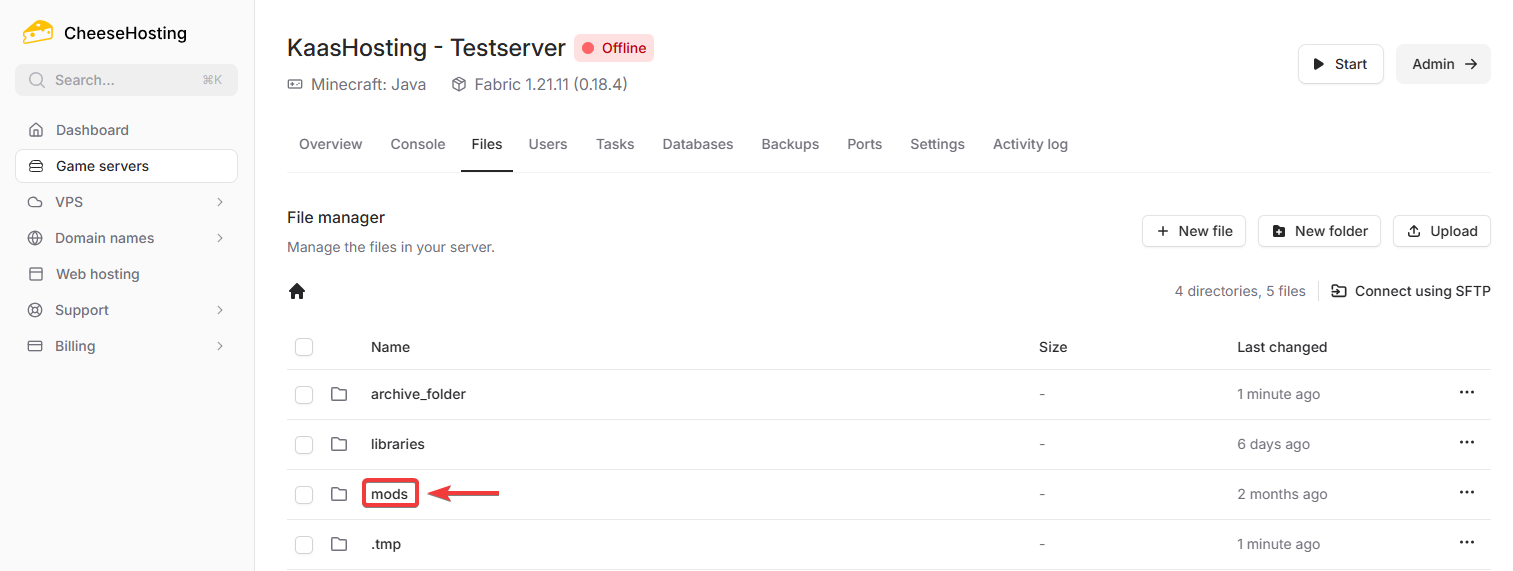
Click on Files.

Navigate to the mods folder by clicking on it. If the mods folder does not exist yet, create it by clicking New folder in the top right corner.
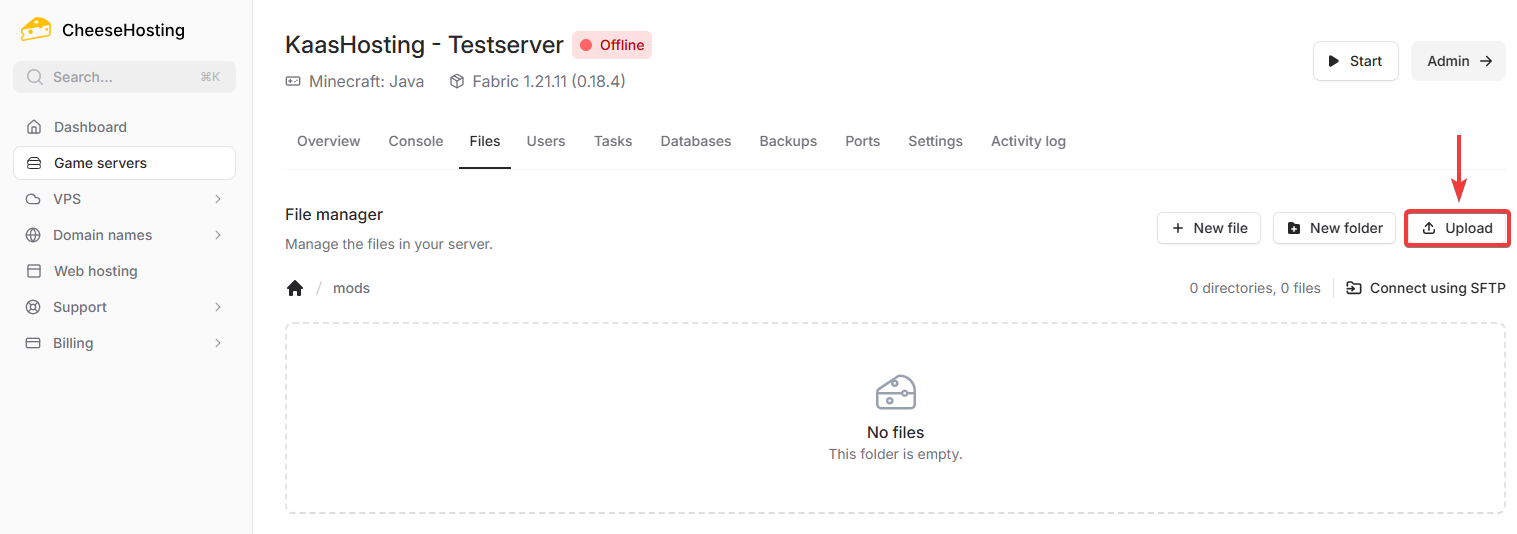
Click Upload and upload the mod file to the mods folder on the server.
Start or restart your server.
All set! You have now installed a mod on your server.
Introduction
With Minecraft mods, you can add new features, blocks, creatures, or gameplay mechanics. You can choose to install individual mods or a complete modpack.
What is a modpack?
Forge and Fabric
Installing a modpack from the CheeseHosting version list
Manually installing a modpack
Installing individual mods