

How do I create an automatic task for my Minecraft server?
23 February 2026
With the task manager you can have your server perform actions automatically. Think of running a command at a fixed time or restarting your Minecraft server daily. This guide explains which types of tasks are available and how to create one.
What can you do with tasks?
The panel supports two types of automated tasks.
Action: runs a console command. Note: commands that require a player, such as
/home, do not work.Payload: use a preset action such as start, stop, restart or power off.
Scheduling a task with Cron fields
Tasks work based on Cron jobs. You configure in five fields when the task should run.
Minute (0 to 59): the minute of the hour when the task starts.
Hour (0 to 23): the hour of the day.
Day of the month (1 to 31): the day of the month.
Month (1 to 12): the month.
Day of the week (0 to 7): the day of the week 0 and 7 equal Sunday.
Below the fields a confirmation appears automatically so you can check how often the task will run. Each * character acts as a wildcard and means the task will run for all possible values within that field.
Examples
Daily at 3:30 am: use
30for minute,3for hour and fill in*for the remaining fields.Every Monday at 2pm: use
0for minute,14for hour, set `*` for day of the month and month and enter 1 Monday for day of the week.Restart the server on April 3, 18 and 27 at 3:30pm:

Creating a task in the panel
Go to the control panel and click on the server for which you want to create a task.
In the top navigation bar click on Tasks.

Press Create Task in the top right corner.

Enter the desired action: action or payload.
Press Create Task.
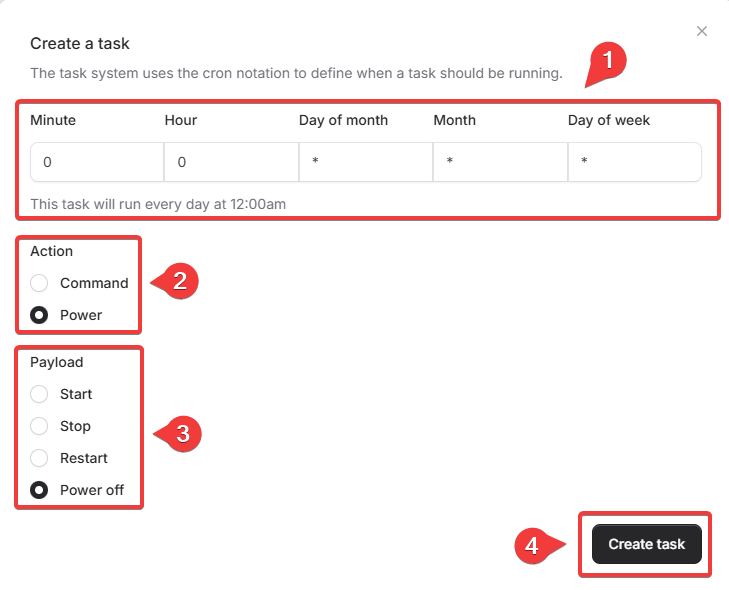
Done! You now know how to create automatic tasks for your server. Try different Cron settings to maintain your server, restart it regularly or run commands periodically. Keep an eye on your tasks and adjust them when your schedule changes.