

How do I install a world downloaded from the internet on my Minecraft server?
23 February 2026
Do you want to install a world you downloaded from the internet on your Minecraft server? In this tutorial, we explain step by step how to do this using SFTP.
⚠️ Please note: in this tutorial, we replace the current world on the server. Do you want to keep the old world? Make sure to create a backup first.
Preparing the world
Before you can upload the downloaded world to your server, make sure to check the following:
We will use SFTP to upload the world. Not sure how this works yet? Take a look at our SFTP tutorial.
Did you download a world that is packaged as an archive, such as .zip, .rar, or .tar.gz? Make sure to extract the archive first.
Does the world folder have a different name than world? Rename the folder to world before continuing.
Uploading the world to your Minecraft server
Go to the control panel and click on the server you want to upload the world to.
Shut down your server.
Log in to your SFTP client using your SFTP credentials to access your server files.
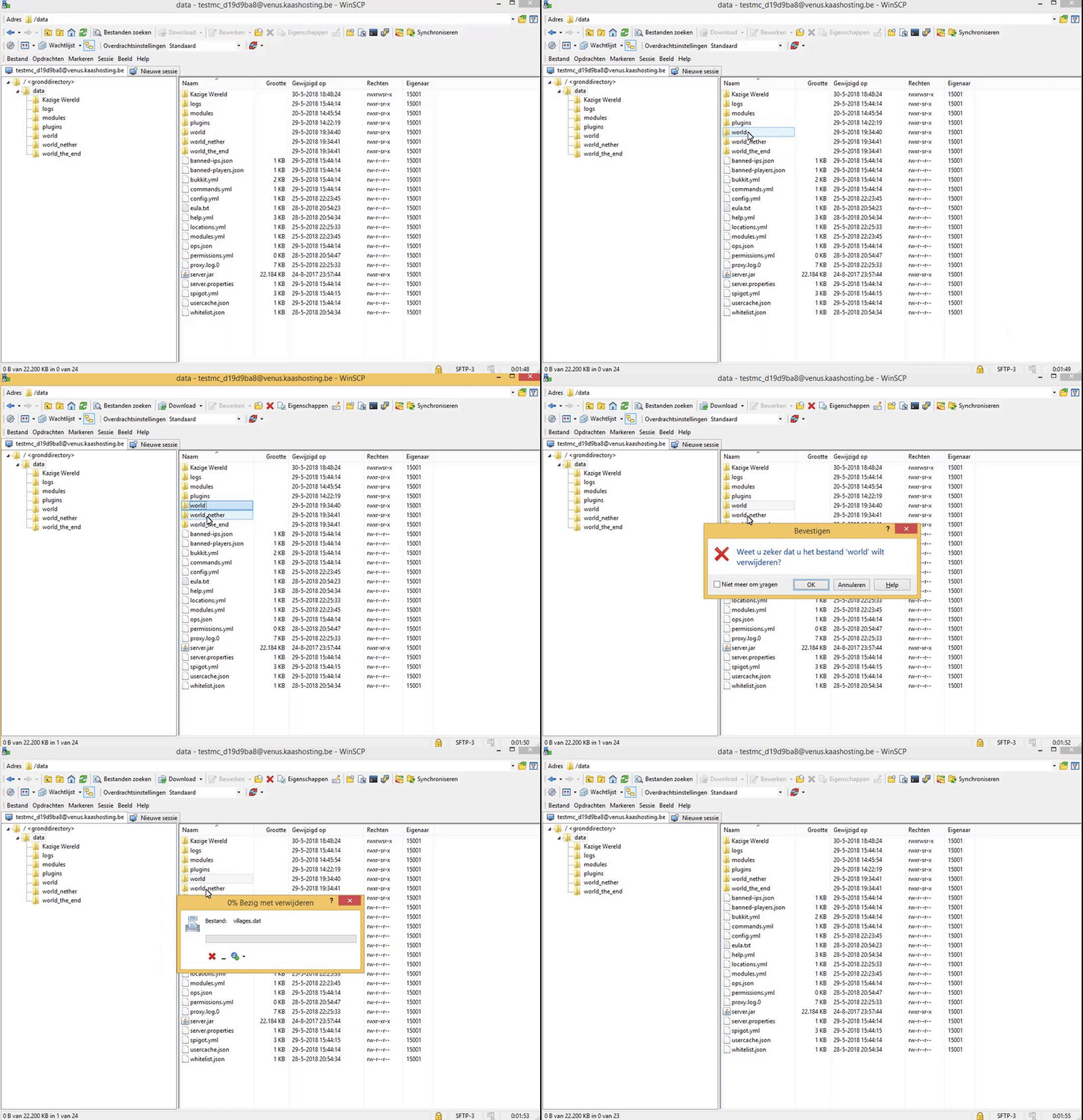
Delete the existing world folder named world from your server. If there is no world yet, you can skip this step. Please note that deleting a world cannot be undone.
Drag the downloaded world folder from your computer into your server files.
Start your server.
Done! Your downloaded world is now installed on your server.