How do I join my Minecraft server?
20 June 2026
You have your own Minecraft server. Naturally, you’ll want to start playing on it as soon as possible. This tutorial explains how to join your server.
Before you can join, it’s important to check a few things:
Is your server running?
Is the server version the same as the version in your Minecraft client?
The connection address
To join your server, you’ll need the connection address. The connection address consists of an IP address or hostname and a port. For example: 7.44.23.5:25565 or minecraft.kaashosting.nl:25565.
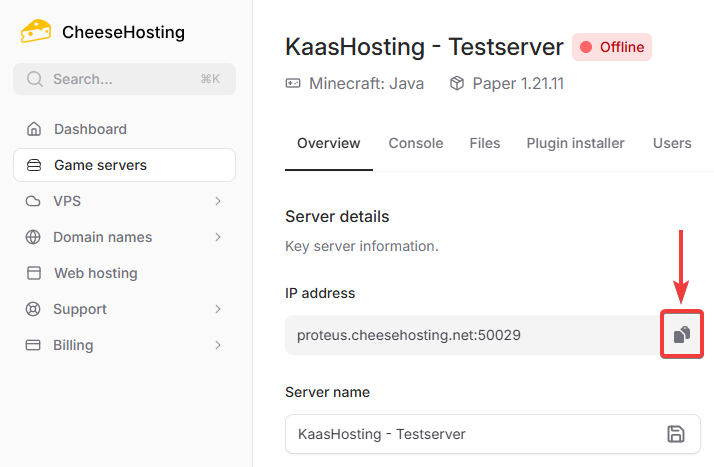
If you have a CheeseHosting server, you can find the connection address in the control panel. You can also easily copy it by clicking the copy icon next to the connection address.
Connecting to your server
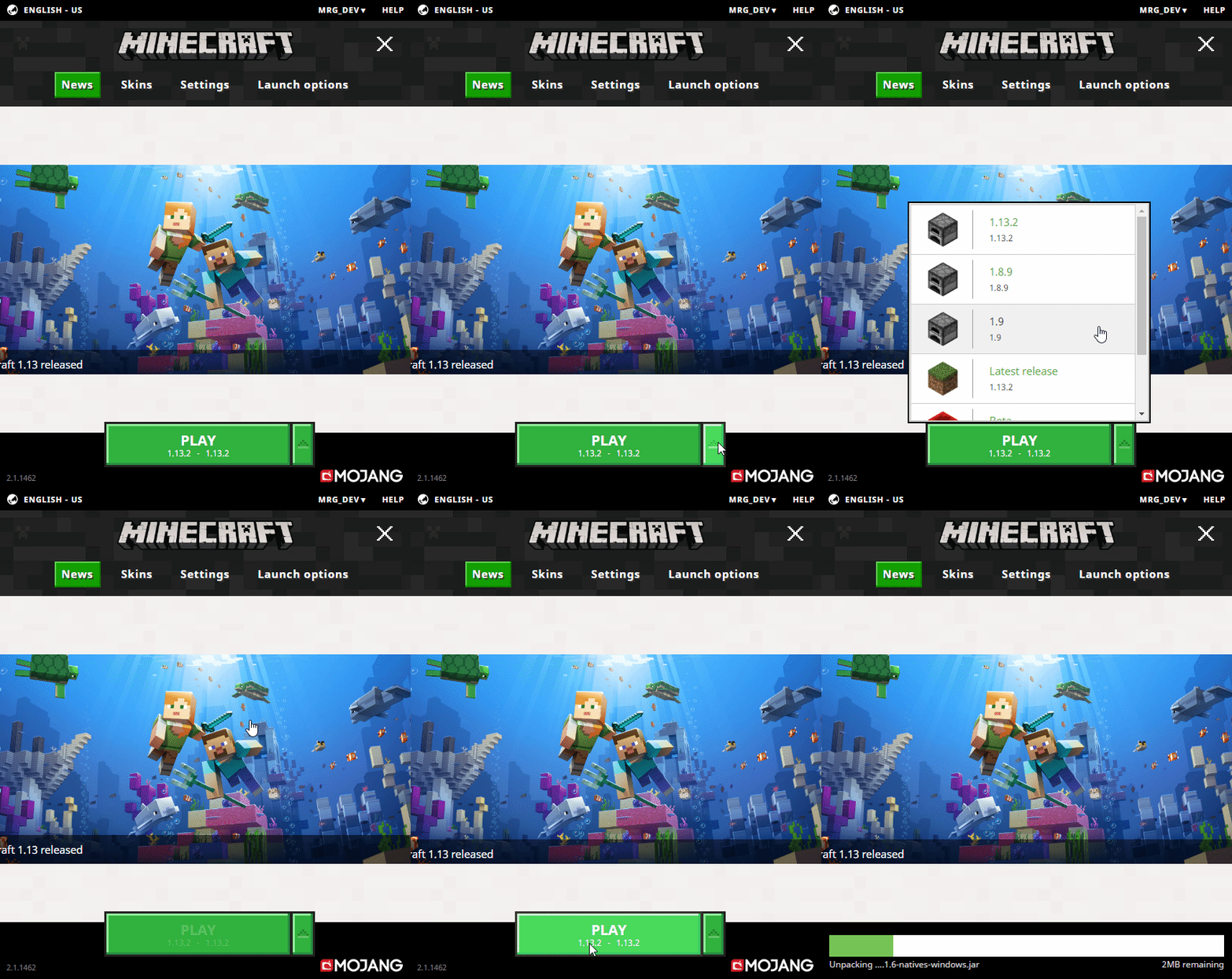
Start the Minecraft Launcher, select the version your server is running on, and then launch Minecraft.
Once you are in Minecraft, click Multiplayer. Then choose Add Server.
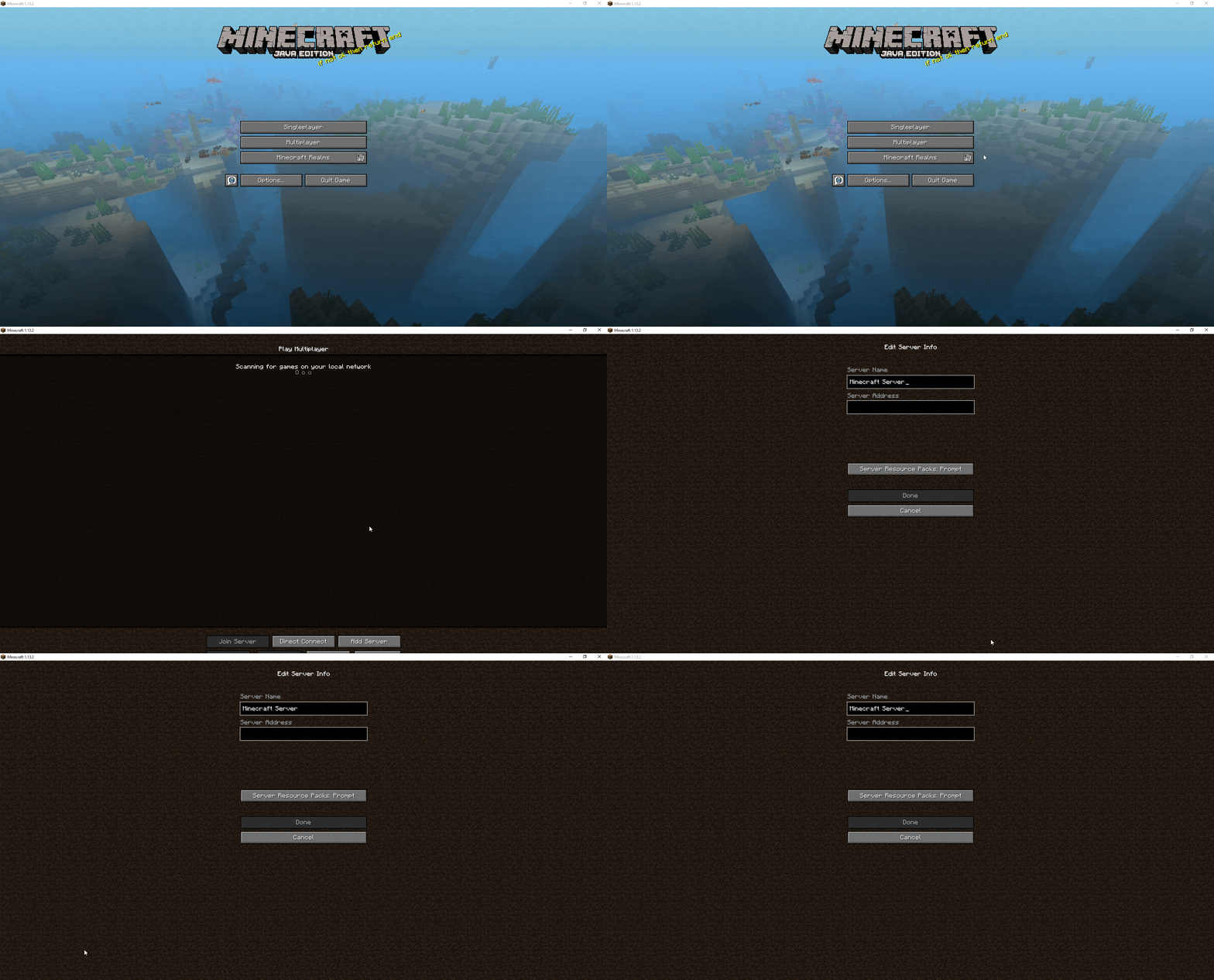
Enter a name for your server under Server Name (this can be anything) and enter the connection address of your Minecraft server under Server Address. Then click Done.
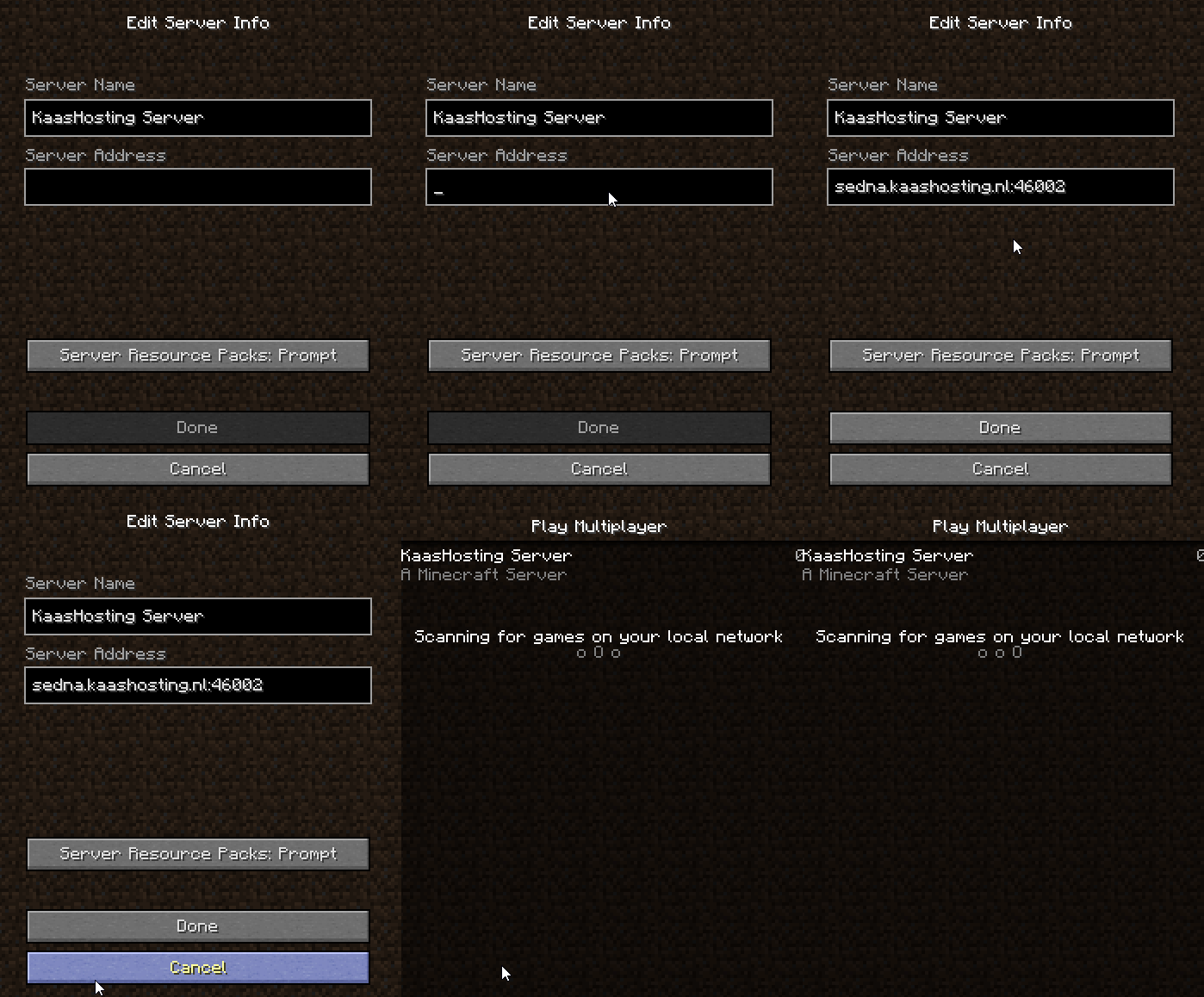
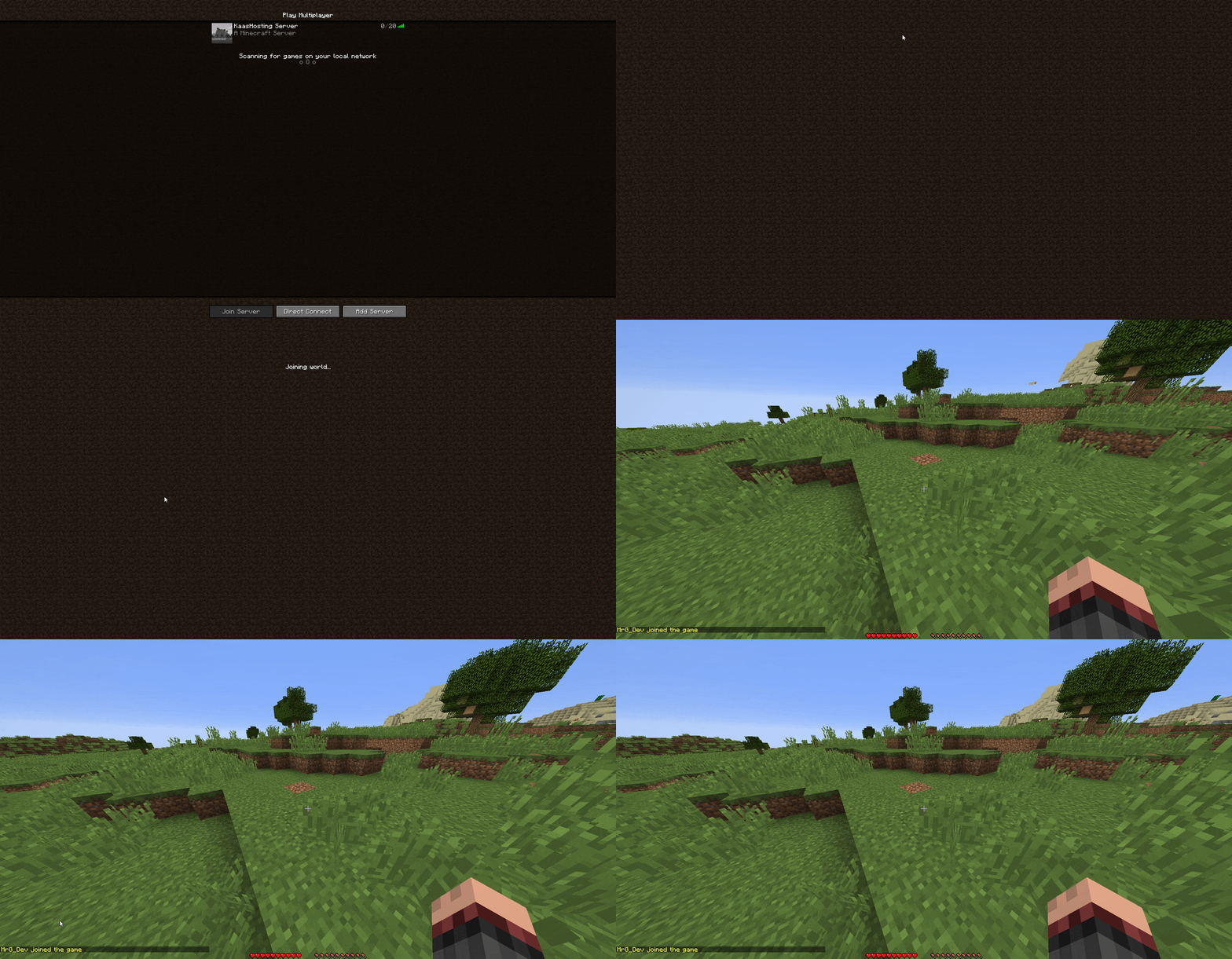
Now double-click the server you just added to join it.