

How do I restore a backup on my Minecraft server?
23 February 2026
At CheeseHosting, we automatically create a backup of all files on your server every 24 hours. You can restore this backup at any time. This is ideal if a player has accidentally caused damage to your world. In this tutorial, we explain step by step how to restore a backup through the control panel.
Before restoring a backup
At CheeseHosting, you can restore a backup in two ways: to a separate folder, allowing you to decide later which files to place back, or by completely replacing your current server files. Choose the method that best fits your situation.
Restoring a backup to a separate folder
Go to the control panel and click on the server where you want to restore a backup.
Click on Backups at the top.

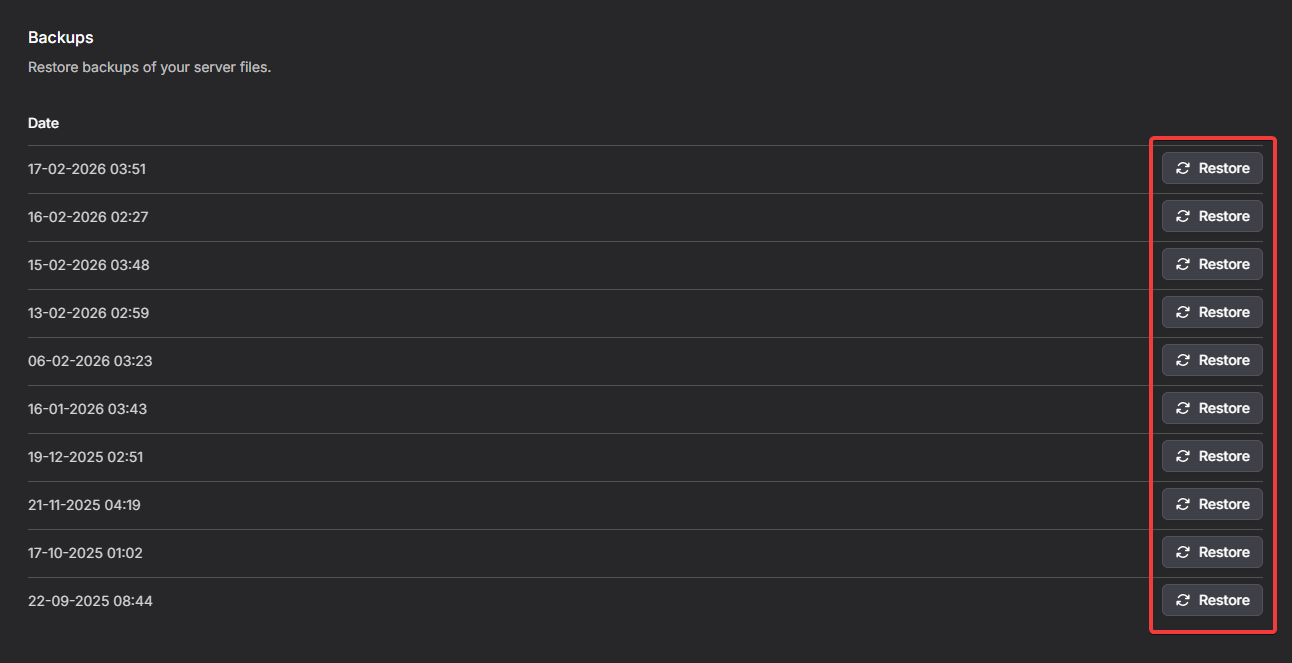
Find the desired backup and click Restore.
Select Restore to separate folder.
Click Restore backup to start the process.
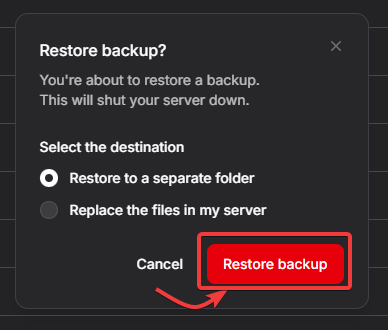
Done! The backup is now being restored. You can follow the progress in your server console.
Replacing all files with a backup
⚠️ Please note: If you choose this option, your current server folder will be completely overwritten. Create your own backup first if there is anything you want to keep.
Go to the control panel and click on the server where you want to restore a backup.
Click on the server for which you want to restore the backup.
In the menu, click Backups.
Find the desired backup and click Restore.
Select Replace the files in my server.
Click Restore backup to start the process.
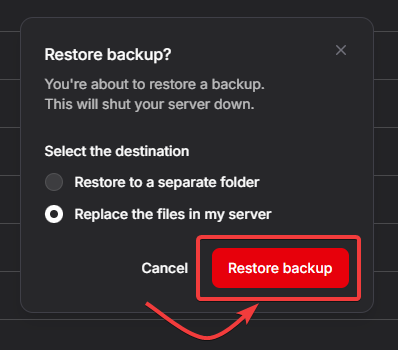
Done! The backup is now being restored. You can follow the progress in your server console.
💡 Hint: Do you want to manually upload, download, or edit files? Check out our guide on SFTP file management for more information.