

How do I use SFTP to manage the files of my Minecraft server?
26 February 2026
SFTP (Secure File Transfer Protocol) is a secure way to transfer files between your computer and a server. At KaasHosting, you can use SFTP to easily upload, download, or modify Minecraft server files.
With SFTP, you can easily:
Upload plugins (for example,
.jarfiles to the plugins folder)Manage worlds (such as
world,world_nether, `world_the_endz)Edit configuration files (like
server.propertiesor plugin settings)Create backups of your server files
To do this, use an SFTP program such as WinSCP (Windows) or CyberDuck (Mac). In this tutorial, we use WinSCP as an example.
Connecting with SFTP
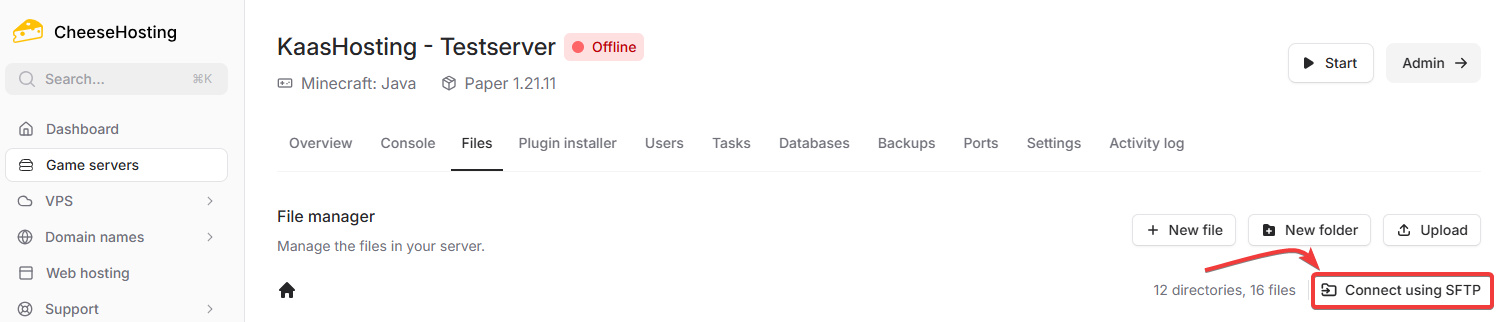
Go to your server in the control panel and click on Files.

Click Connect using SFTP in the top right corner.
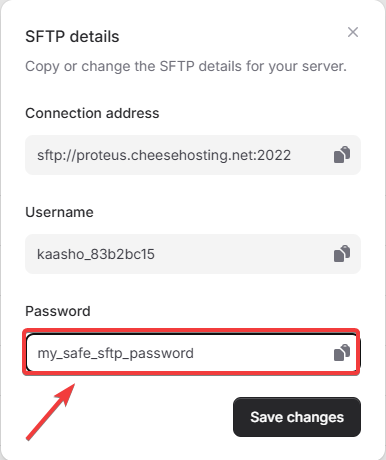
If you haven’t connected via SFTP before, enter a secure password and click Save changes.
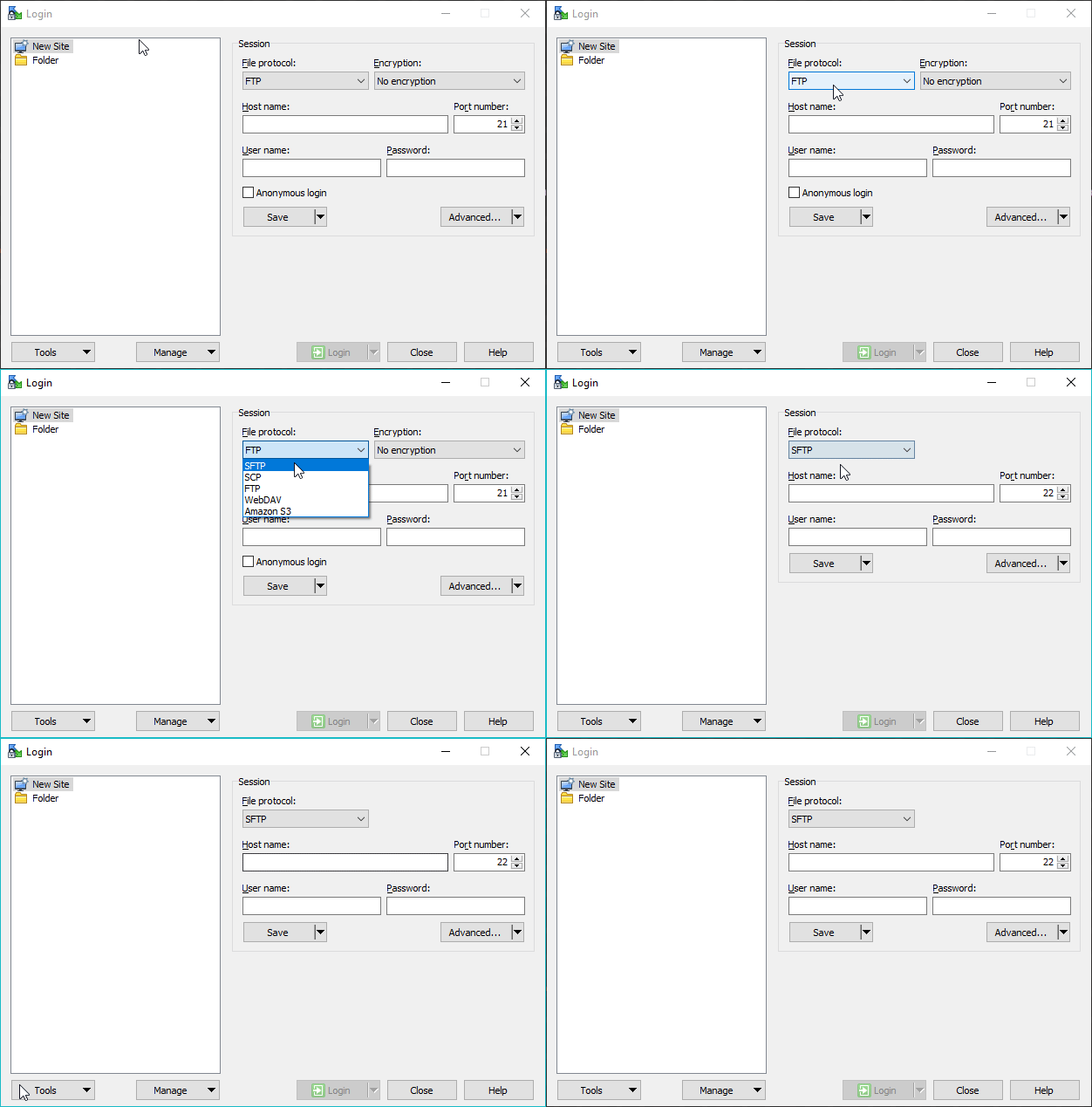
Open WinSCP (or a similar SFTP program).
Select SFTP under File protocol.
Copy the connection address, username, and password from the SFTP details screen in the control panel into WinSCP.
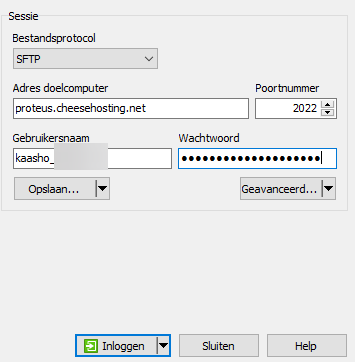
Check that everything is entered correctly and click Login.
Double-click the data folder to open it. Inside the data folder, you will find all the files and folders of your server.

Done! You are now connected to your Minecraft server via SFTP. You can now modify, delete, or upload files.